
Organized
Participants, enrollments, invitations and imports live in one program view that authorized staff share.
The assistant advises and explains. SkyNet calculates every number; the assistant never ranks or changes totals.
Product demo · Demonstration data
A guided, screenshot-based walk through one connected workflow: a workforce program organizes its participants, reviews the job-search activity participants agree to share, verifies outcomes, and prepares reports.
Explore the workflow Post your jobs for free Request a demo
All screenshots come from demonstration organizations ("alpha" and "osborne") filled with synthetic data. No real participant, staff or funder information appears on this page. Hiring? "Post your jobs for free" opens the separate employer posting page.
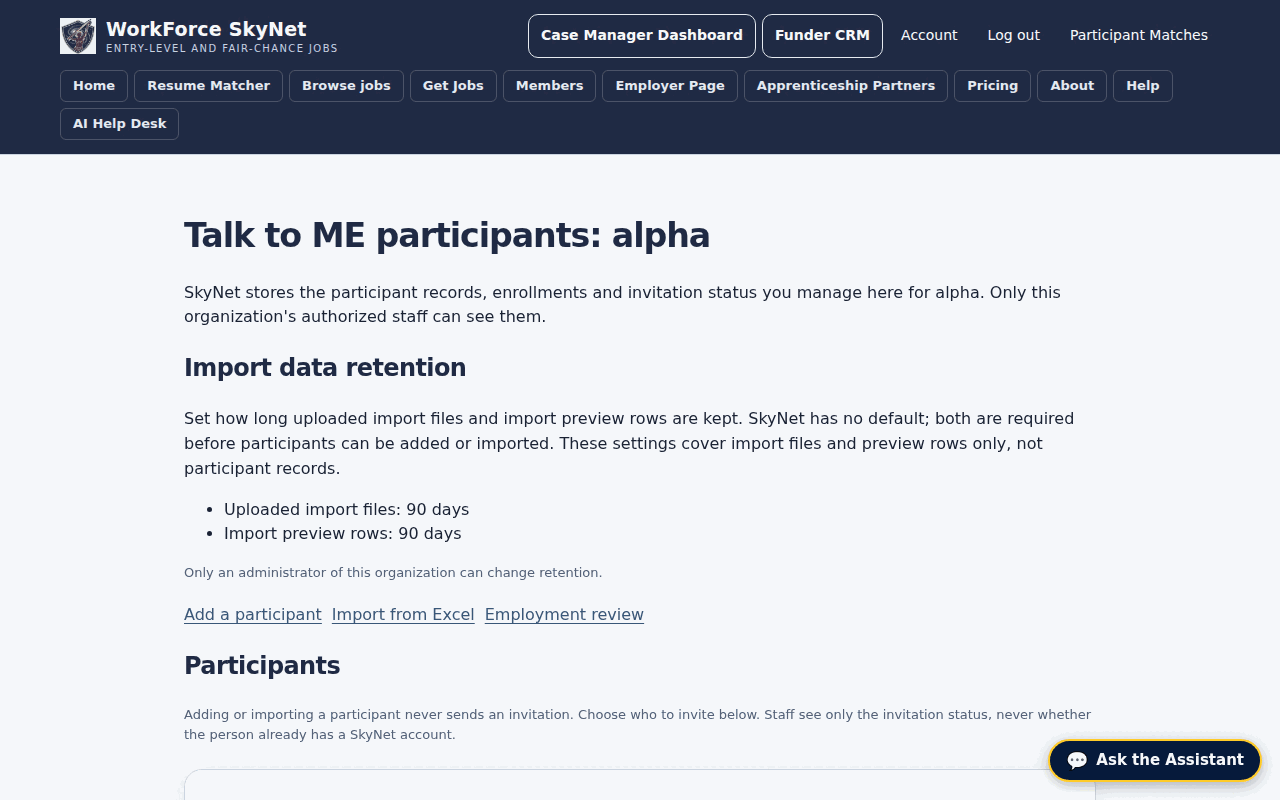
Every screen in this demo works from the same organization records, so staff, administrators and funders look at one consistent picture.
Step 1 · Participant management
Staff work from one list of their organization's participants and enrollments. A participant can be added one at a time or imported from an Excel file with a preview, duplicate flags and no automatic merging.
Staff choose who to invite and see each invitation's status. The participant's private account stays separate.
What to notice: the import retention settings and the "Add a participant", "Import from Excel" and "Employment review" links.
Step 2 · Job activity and case-manager visibility
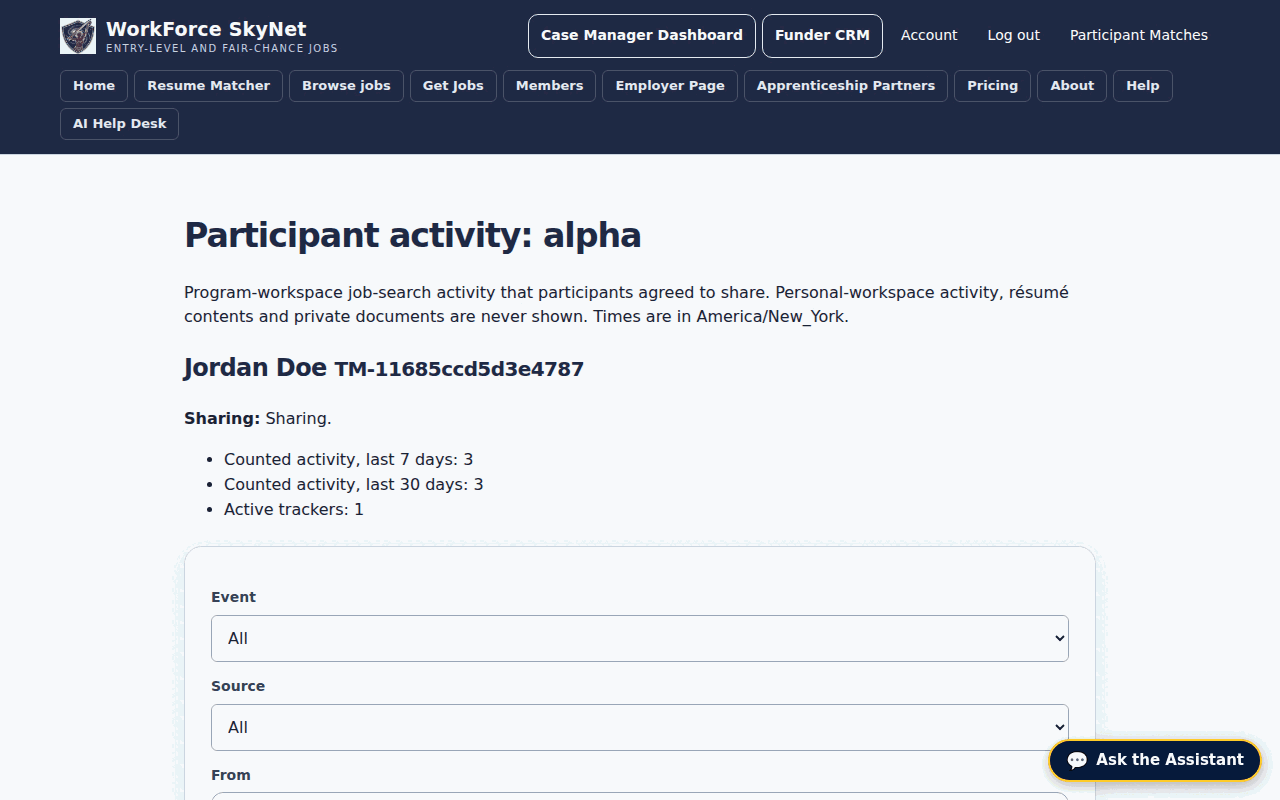
When a participant agrees to share, their Program workspace job-search activity (matches, saved jobs, application trackers) appears here for their case manager.
Personal workspace activity, résumé contents and private documents are never shown.
What to notice: counted activity for one demonstration participant, with filters by event and source.
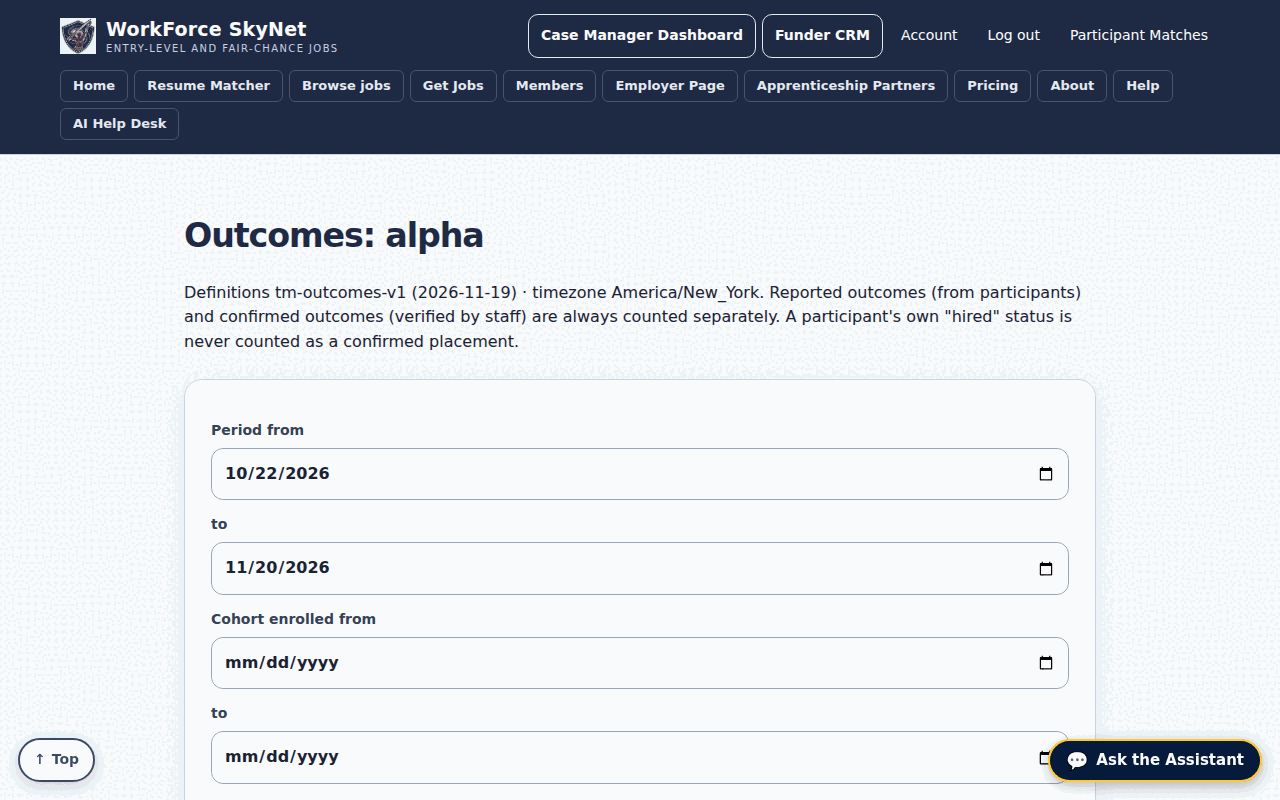
Step 3 · Verified outcomes and KPI reporting
Outcome metrics follow written definitions with the numerator and denominator shown. Participant-reported outcomes are counted separately from staff-verified placements, and a participant's own "hired" status is never counted as a confirmed placement.
Staff choose a period, cohort and program, export CSV files, and can freeze a report so submitted numbers do not change.
What to notice: the definitions version and time zone are printed at the top of the page.
Step 4 · Funder dashboard
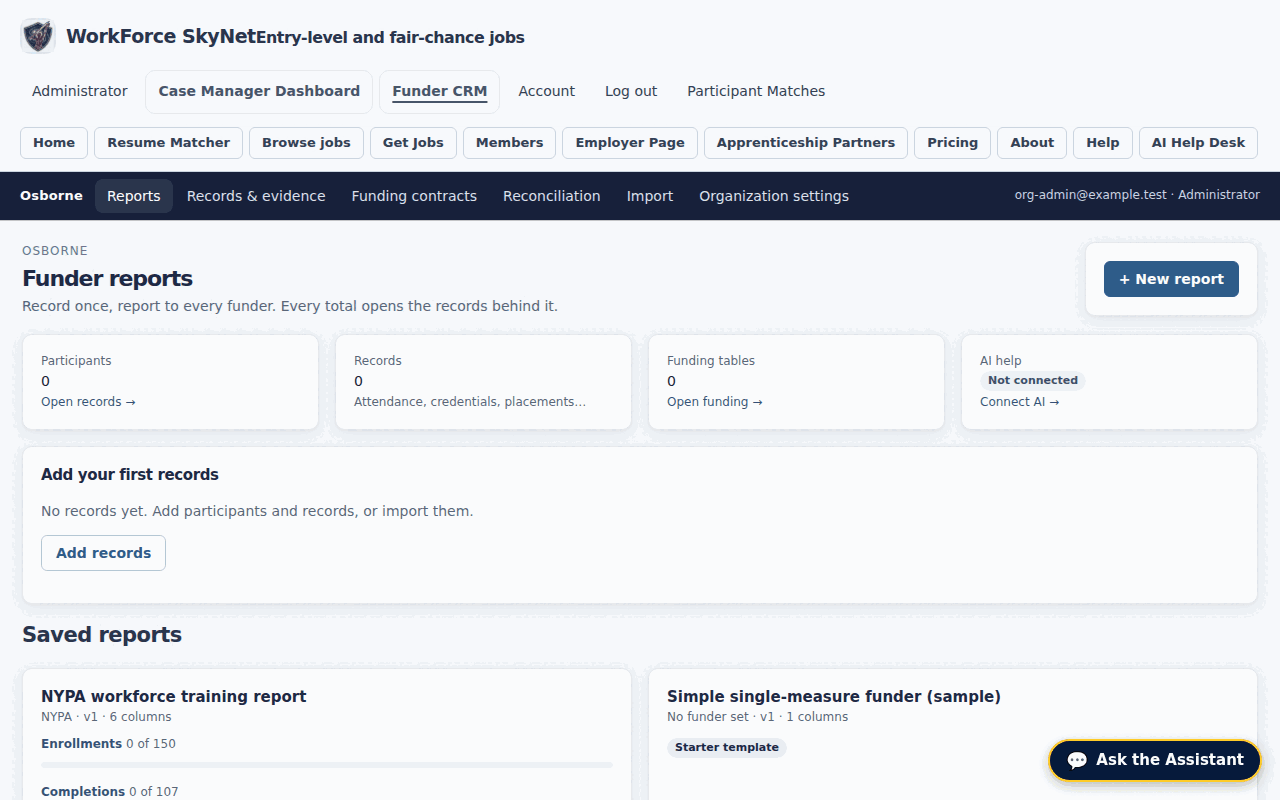
Organization administrators prepare funder reports from the same records: participants, attendance, credentials, placements and funding contracts, with saved report templates.
This screenshot uses a second demonstration organization ("osborne") with empty records, so the counts show zero.
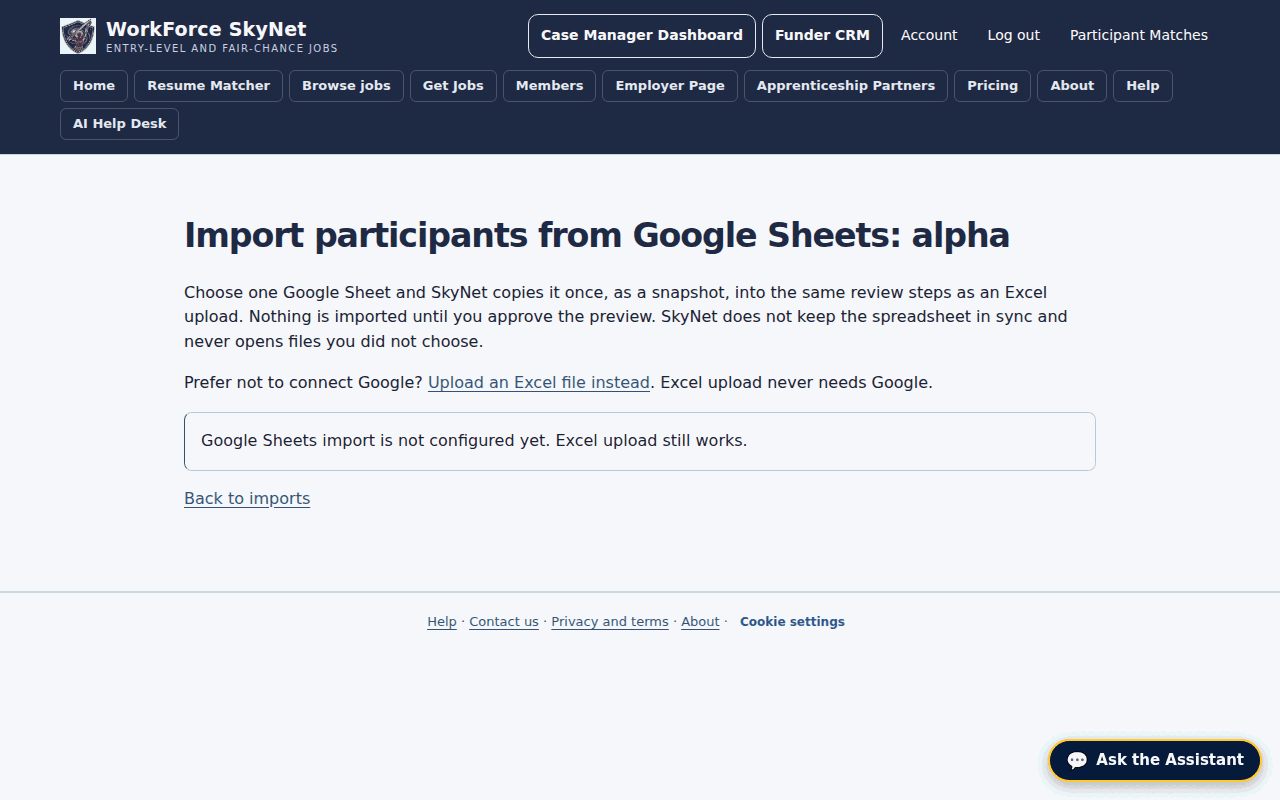
Step 5 · Google connection
Staff will be able to connect a Google account, pick one spreadsheet and import it once as a snapshot. SkyNet never keeps the sheet in sync and never writes back to it.
Excel upload is always available and never needs Google. The Google connection is built but not yet enabled on this site, so it is shown here as a preview.
Step 6 · Available AI assistance
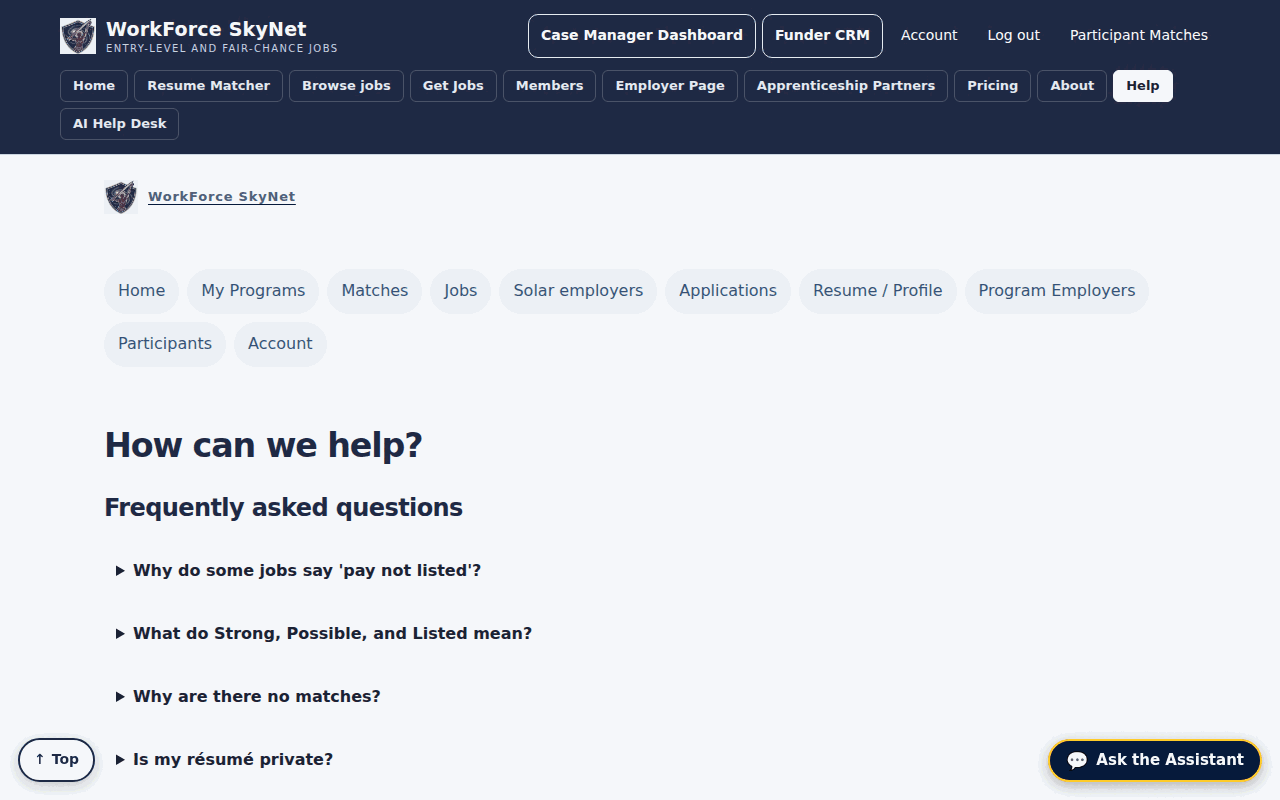
The "Ask the Assistant" help desk is available on every page for signed-in users and answers questions about using SkyNet. Résumé matching and tailoring are included in the Get Jobs tools.
Prompts sent to SkyNet-hosted AI are processed to answer the request and are not retained by the AI server.
The demonstration follows program records from intake to reporting without changing who can see what.
Participants, enrollments, invitations and imports live in one program view that authorized staff share.
Case managers see the Program workspace activity a participant agrees to share, and nothing from the private side.
Outcome definitions, CSV exports, frozen reports and funder templates come from the same records.
An editable spreadsheet workspace inside the organization CRM is planned as a separate build. It is not part of the workflow demonstrated above and will be shown here once it is verified.